Wanderer 3.1 — the touch-first guide
From Low Vision Music. Wanderer is a four-voice synthesizer for the M-VAVE FM-1. You record a short phrase. Wanderer keeps the original safe as the Anchor, and lets a copy, called Memory, wander a little further every time the loop goes round.
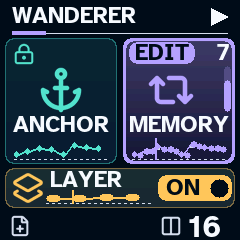
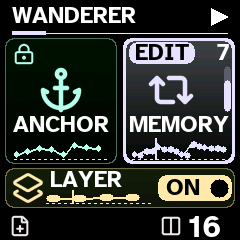
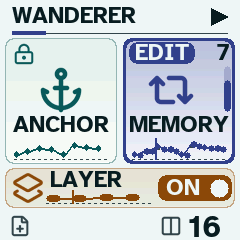
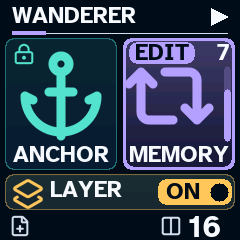
This guide is written to be used with your hands on the instrument. Each section tells you where to reach, what you will hear, and what lights up. You do not need to read the screen to use Wanderer, but the screen helps: large words, thick bars and a colour for each part of the music. Teal is the Anchor, violet is Memory, gold is the Layer. Those colours stay the same on every screen.
0. Switching on
When you switch on, the LVM mark appears, then the letters of Wanderer glide in from the right, one after another, and settle into the word. It takes about three seconds.
- Any key skips straight to Home.
- With Reduced Motion on (hold SEL for Accessibility, knob 3, MOTION), the finished logo shows without movement.
- The first time a new version starts, the animation also covers the fresh-start erase. It takes the same time; a key press still skips the letters, and Home appears as soon as the erase is done. Do not switch off during this first start.

1. Find your way
The keys
The FM-1 has 27 keys, low notes on the left. The first key is an F. Find the groups of two black keys: the white key just left of each pair is a C. On the Home screen every C key glows softly, so you can find them by sight as well as by touch. If you change the root note in Settings → Music, the keys for the new root glow instead.
Knobs
- Four numbered knobs in a row. On Home they are 1 MELT 2 DRIFT 3 SCATTER 4 LEVEL. In every menu, the four knobs change the four rows shown on the screen, top to bottom.
- PRESET: turn it to change the sound. In menus it moves to the next page.
- SELECT: turn it on Home to jump ten sounds at a time. In menus it moves the highlight.
- ALGORITHM: tempo, from 60 to 180 beats per minute.
The three buttons that always help
- HOME goes back one step. Hold it for one second to stop every sound.
- PLAY starts and stops. Its light flashes on every beat.
- ENV is Undo: it reverses your last change.
2. Your first loop
- Tap REC. The loop starts and recording begins. The REC and PLAY lights flash with the beat.
- Play a short phrase on the keys. One bar of 16 steps loops by default; notes snap to the nearest step.
- Tap REC again to stop recording. The phrase keeps playing.
- Play it again: anything you play while REC is on is added to the loop.
Made a mistake? Tap ENV to undo the take.
Click and count-in
Tap SEL for Settings and turn PRESET to Output. Knob 3, CLICK, sets OFF, REC (click while recording) or ALWAYS (click whenever the loop plays). Knob 4 sets the click volume. The first beat of every bar is higher and louder.
Quickest: on Home, tap SEQ to turn the click on or off. The screen says CLICK ON or CLICK OFF, and SEQ glows while it is on.
With the click on, tapping REC from stop counts in one bar: four clicks, a huge 4-3-2-1 on screen, and the REC light flashing on each beat. Recording starts on the next downbeat. Tap REC again to cancel.
Want two bars? Settings → Music, knob 3 (Length) sets 16 or 32 steps (stop first).
3. Let it wander
This is the heart of Wanderer. Turn 1 MELT and 2 DRIFT up a little. At the end of every loop, Memory changes slightly. The next loop changes a little more, and so on.
What you will hear
- Drift moves single notes up or down one step of the scale. At low settings the first beat and the root notes never move, so the tune keeps its shape. Turn it higher for wider movement and occasional octave jumps.
- Melt softens the in-between beats, lets notes run into each other, and drips a quiet echo, one step lower, into empty steps. The sound itself gets softer over several loops.
- Turn either knob down and Memory slowly comes back. With both at zero, every note returns home within a few loops.
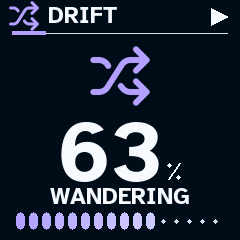
Turning Melt, Drift or Scatter shows a large number and a word: for Drift, STILL, GENTLE, WANDERING or FAR.
4. Keep, Return, Compare
| Do this | What happens | You hear / see |
|---|---|---|
| Tap LFO | Compare. Listen to the Anchor. Tap again to go back. | LFO light is bright while you listen. |
| Tap GLO | Keep. The Memory you hear now becomes the new Memory. Wandering starts from here. | A high cue; the screen says KEPT. Undo with ENV. |
| Hold GLO about 1 second | Return. Memory goes back to what you recorded. | A falling two-note cue; the screen says BACK HOME. |
| Hold LFO 1.2 seconds (stopped) | Restore Anchor. Asks first; Memory becomes the Anchor again. | Tap SELECT to confirm, HOME to cancel. |
| Tap SAVE | Set the Anchor from Memory. If there is already an Anchor, it asks REPLACE ANCHOR: tap SELECT to make Memory, as you hear it now, the new Anchor. Works while the loop plays. | ANCHOR SET or NEW ANCHOR, with a high cue. HOME cancels; ENV (Undo) brings the old Anchor back. |

5. Sounds and layers
- Turn PRESET to choose from 150 sounds; turn SELECT to jump ten at a time. They are grouped in tens: 1 leads, 11 basses, 21 modern basses, 31 poly, 41 keys, 51 organs, 61 voices and choirs, 71 strings and brass, 81 pads, 91 textures, 101 plucks, 111 guitars, 121 mallets, 131 bells, 141 percussion.
- Two new engines. SUPER is a wide, shimmering stack of seven detuned voices in stereo: try Afterglow, Night Reese or Northern Lights. VOICE sings vowels: try Aah Choir, Monk Chant or Whisper. On VOICE sounds, Melt slowly changes the vowel as Memory wanders.
- Each sound has its own Melt character. Leads and basses get darker, keys get rounder, pads and strings open up and widen, plucks and bells soften.
- Hold PLAY for two seconds to return to the first sound, Afterglow.
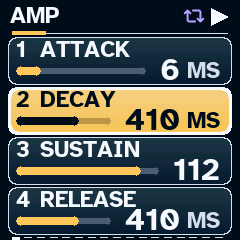
- Tap EDIT to shape the sound. The four knobs change the four rows; the row you are changing turns solid. Turn PRESET for the next page.
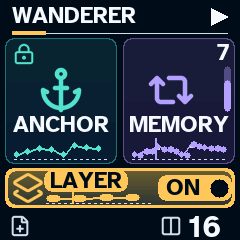
- Hold EDIT about one second to switch between Memory and the Layer. On Home, the gold LAYER row along the bottom lights up with a thick gold edge and a filled gold LAYER tag when the Layer is what you play and record; otherwise the EDIT tag sits on Memory. The Layer does not wander. It stays steady under Memory.
- The switch at the right of the Layer row shows whether the Layer plays: ON (filled gold) or OFF (outline). Tap FX on Home to turn it on or off; FX glows while the Layer is on, and an OFF Layer's melody line turns grey. Settings → LAYER, knob 2, does the same. You hear a rising cue for on and a falling cue for off.
- Clear the Layer's notes: tap SEL for Settings, turn PRESET to LAYER, and turn knob 4, CLEAR. It asks first, and ENV (Undo) brings the notes back. It says EMPTY when there is nothing to clear.
- In Edit, the small symbol at the top right shows what you are changing: violet arrows for Memory, gold squares for the Layer.
- Velocity now changes tone: softer notes are darker. The FM-1 keys play at a steady, neutral velocity.
Each Edit row has a thick bar under its name that shows where the knob sits, from its lowest to its highest setting.
6. Scatter and effects
3 SCATTER on Home chops the sound into repeats, skips, reversals and pitched slices, in time with the loop. From quiet to loud: CLEAN, SPARSE, BUSY, WILD.
- A Scatter pattern repeats each loop, so it plays as a rhythm. In Edit, page Scatter Grid, knob 2 Variation sets how often a new pattern takes over: low keeps the same one, high changes it every loop.
- The first beat stays clean unless Scatter is very high, and the last steps of the loop get more gestures.
- Repeats fade like a real echo.
Effects are in Settings. Tap SEL and turn PRESET to reach Chorus, Delay, Reverb, Tape Echo, Phaser, Bitcrush and Wavefold. The reverb is smooth and wider, and every type except Ambient fades fully to silence.
7. Screen, lights and sound cues
Make the screen easier to see
- Zoom: hold OCT+ for 1.5 seconds, or press HOME and EDIT together. Everything gets larger and keeps the same knob layout. Sound names fill the screen, on two lines when they have two words.
- Colour theme: Wanderer starts in WANDERER: deep navy with teal, violet and gold. Hold OCT− for 1.5 seconds to switch to the next of six themes: Wanderer, Contrast, Light, Amber, Ocean, Violet. The theme name appears on screen, and the choice is remembered.
- Want the most contrast? Hold OCT− once from Wanderer to reach CONTRAST: pure black with very pale colours. Hold it twice for LIGHT, dark on white. Every theme keeps text at least 7 times brighter than its background, and colours at least 3 times.
- Reduced motion: hold SEL for Accessibility; knob 3, MOTION. Display hold time: from Accessibility, turn PRESET one click to the right for Access Feel.
Lights
| Light | Meaning |
|---|---|
| PLAY flashing | The loop is running; bright on every beat. |
| REC flashing | Recording; bright on every beat. Solid while Print is armed or writing. |
| Keys glowing softly | Root notes (C unless you change the root). |
| Keys bright | Notes that are sounding. |
| GLO glow / flash | Something to Keep / Memory just moved. Bright during Scatter repeats. |
| LFO bright | Listening to the Anchor. A flash on the first beat means Memory is far from home. |
| SAVE bright | An Anchor is stored. |
| EDIT bright | The Layer is selected: you are playing, recording and editing the Layer. |
| FX glow | The Layer is ON (it plays). Dark: the Layer is OFF. |
| LFO glow | There is an Anchor you can listen to. |
| OCT− / OCT+ bright | The keyboard is shifted down / up. |
Sound cues
Short tones confirm actions: rising for on, falling for off; a higher tone for each menu row. In Access Feel, CUES sets Off, Actions or Full (Full adds tones at the ends and middle of each knob's range), and CUE LEVEL sets their volume. Cues are not recorded or printed.
8. Save and load
- Stop the loop with PLAY.
- Hold SAVE about one second (or hold SEQ). Turn SELECT to choose slot 1 to 8; each slot has its own cue pitch. The screen says EMPTY SLOT or OVERWRITE.
- Tap SELECT to save, or HOME to cancel.
To load, tap ARP, choose a slot, and tap SELECT.
9. Every control
| Control | Tap | Hold |
|---|---|---|
| PLAY | Start / stop | 2 s on Home: first sound (Afterglow) |
| REC | Record on / off | About 1 s: Print page (record audio into RAM) |
| SAVE | Set or replace the Anchor (asks first) | About 1 s: Save |
| LFO | Compare with the Anchor | 1.2 s, stopped: Restore Anchor |
| GLO | Keep the wander | About 1 s: Return home |
| ENV | Undo the last change (on the Print page: undo / redo the print) | — |
| EDIT | Edit the sound | About 1 s: switch between Memory and the Layer |
| FX | Layer ON / OFF | 1.6 s: New session (asks first) |
| SEQ | Click (metronome) on or off | About 1 s: Save |
| ARP | Load | About 1 s: Arpeggiator settings |
| SEL | Settings, Music page | About 1 s: Accessibility |
| HOME | Back / cancel | 1 s: stop all sound |
| OCT− / OCT+ | Octave down / up | 1.5 s: next theme / Zoom |
| HOME + EDIT | Press together: Zoom on or off | |
| HOME + SEL | Press together: oscilloscope | |
10. If something goes wrong
Going back to the official firmware
Do this before installing the official v15 firmware. It stops v15 from reading Wanderer's projects as its own memory.
- Stop the loop.
- Tap SEL for Settings, then turn PRESET to SYSTEM.
- Turn knob 4, OFFICIAL FW. The screen asks: ERASE 8 SLOTS AND SETTINGS FOR OFFICIAL FW.
- Tap SELECT to erase, or HOME to cancel.
This deletes every saved Wanderer project. When the screen says READY FOR V15, install v15. If v15 already shows strange data, install Wanderer again, do these steps, then reinstall v15.
If the sound breaks up
Settings → SYSTEM shows CPU NOW and CPU PEAK. When the load gets high, Wanderer lightens its heaviest sounds by itself (LOAD GUARD shows LIGHTER or LIGHTEST) and returns to normal when things calm down. Lowering the number of effects in use also helps.
- Too much is happening: hold HOME for one second. Every sound stops; your notes are safe.
- Memory has gone too far: hold GLO to Return, or turn Melt and Drift to zero and let it drift home.
- Unexpected message: every message has a word. Tap HOME or SELECT to clear it.
- The FM-1 will not start: hold OCT− while switching it on. This starts the USB rescue mode, where you can install 3.0 RC3 or the stock firmware again.
- Switched off during the first start of a new version: nothing is lost that was not already being cleared. The erase simply starts again the next time you switch on.
Source, changes and tests: CHANGES_3.1.md. Wanderer is GPL-3.0 software by Nicholas James / Low Vision Music. It is independent and not affiliated with M-VAVE.